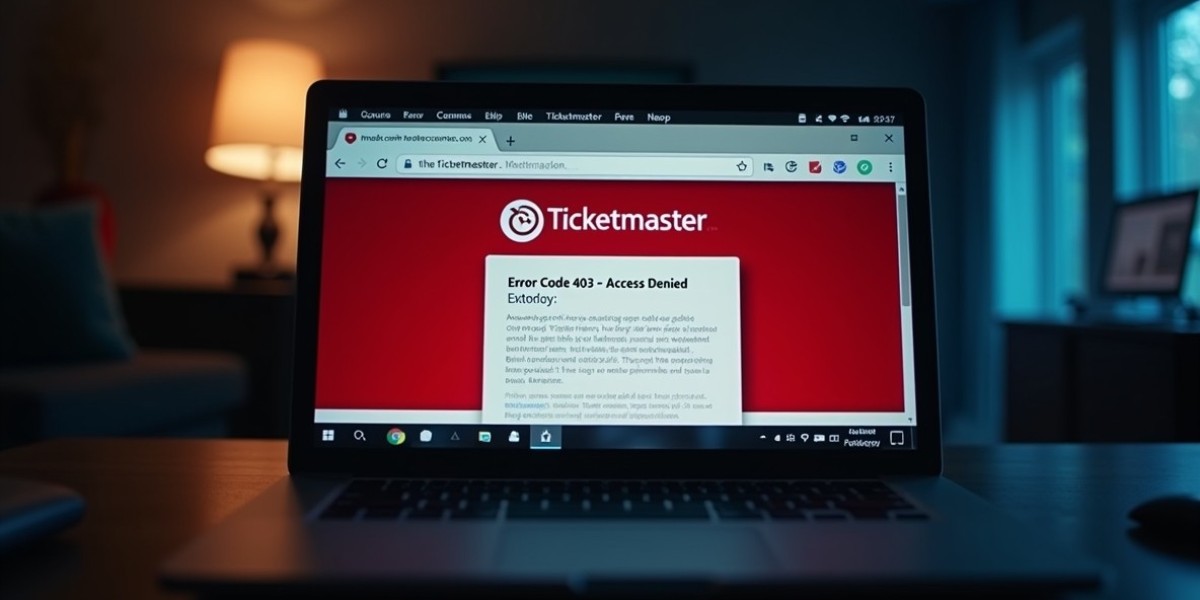

If you’ve ever tried to buy concert or sports tickets online and suddenly hit Ticketmaster Error Code 403, you know how frustrating it can be. One moment you’re ready to secure your seat, and the next you’re blocked with a 403 Error Code staring back at you.
This error is more common than you might think, and the good news is that it’s usually fixable. In this in-depth guide, we’ll break down what Ticketmaster Error Code 403 means, why it happens, how to fix it step by step, and how to prevent it from appearing again in the future.
What Is Ticketmaster Error Code 403?
Ticketmaster Error Code 403 is a type of HTTP error that means “Access Forbidden.” In simple terms, Ticketmaster’s servers are refusing your request.
When you see a 403 Error Code, it means the website believes your connection, device, or behavior violates its access rules—even if you’re doing nothing wrong.
This error can occur on:
- The Ticketmaster website
- The Ticketmaster mobile app
- Specific event pages or checkout screens
Why Does Ticketmaster Show Error Code 403?
Ticketmaster uses advanced security systems to protect against bots, fraud, and suspicious activity. Unfortunately, these systems can sometimes block real users. Below are the most common reasons for Ticketmaster Error Code 403.
1. Your IP Address Is Temporarily Blocked
One of the most frequent causes of a 403 Error Code is an IP address block. This can happen if:
- You refreshed the page too many times
- You tried accessing multiple events quickly
- Ticketmaster suspects bot-like behavior
Public Wi-Fi networks and shared connections are especially prone to this issue.
2. VPN or Proxy Services
Using a VPN is a major trigger for Ticketmaster Error Code 403. Ticketmaster actively blocks many VPN and proxy IPs because they are often used by automated bots.
If you’re connected to a VPN—even a reputable one—Ticketmaster may deny access and display a 403 Error Code.
3. Browser Cache and Cookies Issues
Corrupted cookies or outdated cached files can confuse Ticketmaster’s security system. When this happens, the site may think your session is invalid or suspicious, resulting in Ticketmaster Error Code 403.
4. Ad Blockers and Security Extensions
Some browser extensions interfere with scripts that Ticketmaster needs to function properly. Ad blockers, privacy tools, and script blockers can unintentionally trigger a 403 Error Code.
5. Geographic or Regional Restrictions
Certain events are region-locked. If you’re accessing Ticketmaster from a country or region not authorized for ticket sales, you may encounter Ticketmaster Error Code 403.
How to Fix Ticketmaster Error Code 403 (Step-by-Step)
Let’s get to the solutions. Try these fixes in order until the 403 Error Code is resolved.
1. Turn Off Your VPN or Proxy
This is the fastest and most effective fix.
- Disconnect from your VPN
- Restart your browser
- Revisit Ticketmaster
In many cases, Ticketmaster Error Code 403 disappears immediately after disabling the VPN.
2. Clear Browser Cache and Cookies
Clearing your browser data helps remove corrupted session files.
Steps (General):
- Open browser settings
- Go to Privacy & Security
- Clear cookies and cached images/files
- Restart your browser
This fix works well if the 403 Error Code is caused by session conflicts.
3. Try a Different Browser or Device
If the error persists:
- Switch from Chrome to Firefox, Edge, or Safari
- Try accessing Ticketmaster from your phone instead of your computer
Sometimes Ticketmaster Error Code 403 is device-specific.
4. Disable Browser Extensions Temporarily
Turn off:
- Ad blockers
- Script blockers
- Privacy or anti-tracking extensions
Reload the page after disabling them. If the site works, re-enable extensions one by one to find the culprit.
5. Restart Your Internet Router
Restarting your router can assign a new IP address. This is especially helpful if your previous IP was flagged and caused the 403 Error Code.
6. Use Mobile Data Instead of Wi-Fi
If you’re on public or office Wi-Fi:
- Switch to mobile data
- Reopen Ticketmaster
Shared networks are a common reason for Ticketmaster Error Code 403.
7. Log In to Your Ticketmaster Account
Accessing Ticketmaster while logged in can reduce security flags. Make sure:
- Your account is verified
- Your email is confirmed
- You’re not logged in on multiple devices simultaneously
Is Ticketmaster Error Code 403 a Ban?
No—Ticketmaster Error Code 403 is usually temporary, not a permanent ban.
In most cases:
- The block lasts from a few minutes to a few hours
- It’s automatically removed once suspicious activity stops
Permanent bans are extremely rare and typically related to confirmed bot usage or fraud.
How to Avoid Ticketmaster Error Code 403 in the Future
Prevention is better than troubleshooting. Follow these tips to reduce the chances of seeing a 403 Error Code again.
Avoid Rapid Refreshing:
Constantly refreshing event pages looks like bot behavior. Instead:
- Refresh once every few seconds
- Use Ticketmaster’s built-in queue system
Don’t Use Multiple Tabs or Devices:
Opening Ticketmaster on several devices at once can trigger Ticketmaster Error Code 403. Stick to:
- One browser
- One device
- One account
Use a Stable, Trusted Network:
Home Wi-Fi or personal mobile data is safer than:
- Public Wi-Fi
- Office networks
- Shared connections
Keep Your Browser Updated:
Outdated browsers may not handle Ticketmaster’s security scripts correctly, increasing the risk of a 403 Error Code.
Ticketmaster Error Code 403 on the Mobile App
Seeing Ticketmaster Error Code 403 on the app? Try this:
- Force close the app
- Clear app cache (Android)
- Update the app
- Reinstall if necessary
App-level cache issues are a common cause of the 403 Error Code.
When to Contact Ticketmaster Support
If none of the fixes work after 24 hours, it’s time to contact Ticketmaster support.
Provide them with:
- Screenshot of the 403 Error Code
- Time and date of the issue
- Device and browser details
- Your IP or network type (Wi-Fi or mobile data)
Support can confirm whether your IP or account is being blocked.
Final Thoughts on Ticketmaster Error Code 403
Running into Ticketmaster Error Code 403 can feel like a show-stopping moment, especially when tickets are selling fast. But in most cases, the 403 Error Code is simply a security precaution—not a dead end.
By disabling VPNs, clearing cache, switching networks, and avoiding rapid refresh behavior, you can usually resolve Ticketmaster Error Code 403 in minutes.