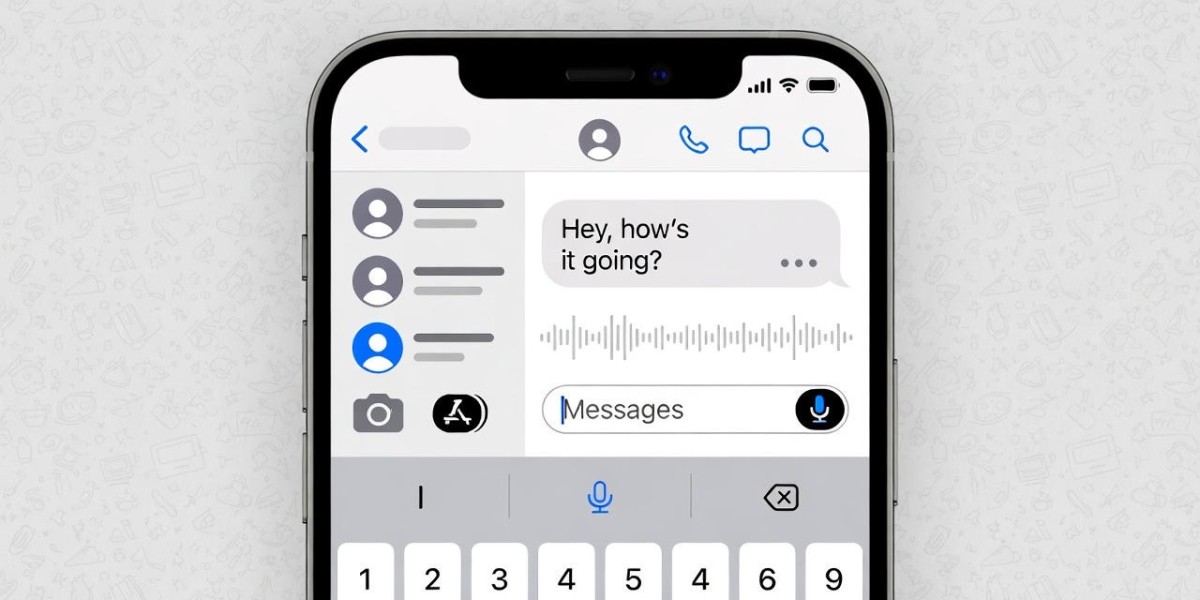

Most iPhone users type at 40 words per minute. Voice dictation lets you speak at 150 words per minute, which is 3x faster productivity with zero finger strain. Yet 67% of iPhone owners have never activated dictation, missing out on one of iOS's most powerful features. This guide reveals the advanced commands, hidden shortcuts, and professional workflows that transform casual voice typing into expert-level dictation mastery.
You're about to learn techniques Apple doesn't advertise: real-time editing commands that fix mistakes instantly, multilingual switching mid-sentence, and automation strategies that save hours every week. Whether you're drafting emails during your commute, capturing meeting notes hands-free, or creating long-form content without touching your keyboard, mastering how to use voice to text on iPhone changes everything.
Enable Voice to Text on iPhone: The 60-Second Setup
Most iPhones ship with dictation pre-enabled, but if your microphone icon isn't visible on the keyboard, here's the complete activation process:
- Open Settings → General → Keyboard
- Toggle Enable Dictation to ON
- Review the privacy notice (iOS 16+ processes voice on-device)
- Tap Enable Dictation to confirm
Privacy matters here. iOS 16 and later versions process your voice data directly on your iPhone—nothing gets sent to Apple's servers unless you're using older iOS versions. This means faster processing, complete offline functionality, and zero data privacy concerns.
Grant Microphone Permissions
After enabling dictation, iOS automatically requests microphone access. If you accidentally denied permission:
- Go to Settings → Privacy & Security → Microphone
- Find your keyboard app (Gboard, SwiftKey, or iOS Keyboard)
- Toggle permissions to ON
Test your setup immediately. Open Messages or Notes, tap any text field, and look for the microphone icon at the bottom-left of your keyboard (next to the space bar). Tap it once and speak—your words should appear in real-time.
Pro Tip: Enable "Auto-Punctuation" in Settings → General → Keyboard → Dictation. Your iPhone uses AI to insert commas and periods based on your natural speech rhythm, eliminating the need to verbally say punctuation marks every few words.
Master Advanced Dictation Commands: The Complete Reference
Basic dictation is simple: tap the mic and talk. Professional dictation requires command mastery. These voice shortcuts control formatting, editing, and navigation without ever touching your screen.
Punctuation & Formatting Commands
Say these phrases naturally within your dictation, and the iPhone inserts the corresponding symbol:
Basic Punctuation:
- "Period" or "full stop" →.
- "Comma" →,
- "Question mark" →?
- "Exclamation point" or "exclamation mark" →!
- "Apostrophe" → '
- "Quotation mark" or "quote" → "
Advanced Formatting:
- "Colon" → :
- "Semicolon" → ;
- "Dash" or "hyphen" → -
- "Ellipsis" → ...
- "New line" → Creates a line break
- "New paragraph" → Adds double spacing
- "Tab key" → Indents text
Pro Tip: String commands together naturally: "Send the report period new paragraph I reviewed your proposal comma, and it looks great exclamation point" produces perfectly formatted text without manual corrections.
Capitalization Commands
Control letter casing with voice—essential for proper nouns, acronyms, and emphasis:
- "Cap [word]" → Capitalizes the next single word
- "Caps on" → Starts capitalizing everything you say
- "Caps off" → Stops capitalizing (returns to normal)
- "All caps [word]" → CAPITALIZES the next word entirely
- "All caps on" → TYPES EVERYTHING IN CAPITALS
- "All caps off" → Returns to normal casing
- "No caps on" → forces lowercase typing
- "No caps off" → Returns to auto-capitalization
Real-world example: Dictating a business email: "Dear Cap John, comma new paragraph Thank you for the all caps Q4 report period" produces: "Dear John, Thank you for the Q4 report."
Editing Commands (iPhone 12 and Later)
These game-changing commands appeared with iOS 15 and work on iPhone 12 or newer devices:
Selective Editing:
- "Change [word] to [new word]" → Replaces specific text
- "Insert [text] before [word]" → Adds content at precise locations
- "Insert [text] after [word]" → Places new text following a word
- "Select [word or phrase]" → Highlights text for manipulation
- "Replace [word] with [new word]" → Swaps one term for another
Deletion Commands:
- "Delete [word]" → Removes a specific word
- "Delete that" → Erases your last phrase (3-5 words)
- "Delete all" → Clears all dictated text
- "Scratch that" → Alternative to "delete that"
Undo/Redo:
- "Undo" → Reverses your last action
- "Redo" → Reapplies what you undid
Pro Tip: These editing commands only work on text dictated in the current session. If you tap the keyboard to stop dictation, then restart it, you can't use voice commands to edit the previous section. Plan your dictation in longer continuous sessions for maximum editing power.
iPhone Dictation Power User Techniques
Moving beyond basic commands, these advanced features separate casual users from professionals who save hours daily.
Continuous Dictation Without Time Limits
Older iOS versions (pre-iOS 13) capped dictation at 30-60 seconds. Modern iPhones have zero time restrictions—you can dictate for 10 minutes straight without interruption. This makes voice-to-text viable for:
- Long-form articles and blog posts
- Detailed meeting notes spanning entire calls
- Complete email responses to complex questions
- Daily journal entries without stopping
The only limit is silence. If you pause for more than 30 seconds, dictation automatically stops. Just tap the microphone icon to resume—your previous text remains intact.
Real-Time Keyboard Editing (The Hybrid Approach)
You don't have to choose between typing and dictating. The most efficient workflow combines both:
- Start dictating a paragraph
- Tap anywhere on screen (dictation continues running)
- Use your finger to correct a typo or reposition the cursor
- Continue speaking—new words appear at your cursor position
This hybrid method is perfect when dictation misinterprets a technical term or proper noun. Fix it instantly without stopping your flow.
Double-tap any word while dictating to see alternative suggestions. iPhone's AI often captures multiple interpretations of homophones (their/there, to/too/two) and lets you pick the correct version.
Automatic Punctuation Intelligence
When enabled, iPhone analyzes your speech patterns—pauses, intonation, and context—to insert punctuation automatically. This feature learns from your dictation habits and improves over time.
To optimize automatic punctuation:
- Speak in complete thoughts with natural pauses
- Don't rush through sentences without breathing
- Use slight tonal drops at sentence endings (signals a period)
- Let your voice rise slightly for questions (triggers question marks)
After 2-3 days of consistent use, you'll notice dramatically fewer manual corrections needed.
Multilingual Dictation Magic
iPhone detects and switches between 70+ languages automatically—no settings adjustment required. If you're bilingual, just speak naturally mixing languages:
"I need to schedule a meeting para discutir el proyecto tomorrow at three p.m."
iPhone understands the English-Spanish code-switching and formats everything correctly.
To add languages manually:
- Settings → General → Keyboard → Dictation Languages
- Tap Add New Language
- Select from the list (Spanish, French, Mandarin, Hindi, Arabic, etc.)
Languages download on-device, so switching happens instantly even offline. This is revolutionary for multilingual professionals who previously needed separate dictation apps.
Pro Tip: When dictating technical jargon, proper nouns, or brand names, speak them slightly slower with clear enunciation. iPhone's AI uses context clues from surrounding words to make intelligent guesses—the clearer your speech, the more accurate the interpretation.
Use Cases for Maximum Efficiency: Real-World Workflows
Theory means nothing without application. Here's how professionals across industries use advanced iPhone dictation to reclaim hours every week:
Long-Form Content Creation
Writers, bloggers, and journalists use dictation to overcome writer's block and accelerate first drafts. Speak your rough ideas freely—editing comes later. Dictate 1,500 words in 15 minutes, then spend 10 minutes refining with the keyboard.
Best practices:
- Outline your structure beforehand
- Dictate one section completely before moving to the next
- Don't self-edit while speaking (kills momentum)
- Use "new paragraph" liberally to create visual breaks
Email Management: Inbox Zero in Half the Time
The average professional spends 28% of their workday on email. Dictation cuts that in half. Instead of carefully typing responses, speak naturally:
"Hi cap sarah comma new paragraph Thanks for sending the proposal period I reviewed the budget section comma and everything looks reasonable period new paragraph Could you clarify the timeline for phase two question mark I want to make sure we align with marketing's schedule period new paragraph Best comma"
This 30-second dictation produces a perfectly formatted, professional email that would take 2+ minutes to type.
Meeting Notes: Capture Everything Hands-Free
During video calls or in-person meetings, use dictation to transcribe discussions in real-time. Place your iPhone in front of you and tap the microphone once at the start. Everything gets captured while you maintain eye contact with speakers.
Pro workflow: After the meeting, use the editing commands to clean up filler words: "Delete um... Delete like... Delete you know." Five minutes of cleanup produces publishable meeting minutes.
Social Media Posts: Instant Content Across Platforms
Creating engaging social content takes time—unless you dictate it. Open Instagram, Twitter, LinkedIn, or any app, tap the text field, and speak your post naturally. Add emojis using voice commands (covered next), and publish in seconds.
This works brilliantly for carousel posts, long-form LinkedIn articles, and Instagram captions that require storytelling. Speak the way you'd explain the concept to a friend—authentic voice always outperforms overthought copy.
To-Do Lists & Reminders: Voice-Powered Task Management
Instead of manually adding tasks throughout the day, speak them into existence:
- Open Reminders app
- Tap microphone icon
- Dictate: "Buy groceries tomorrow at 5 p.m. comma pick up dry cleaning comma schedule dentist appointment for next week comma review Q1 budget before Friday"
iPhone creates separate tasks automatically based on commas and context. This hands-free task capture ensures nothing gets forgotten.
WhatsApp & Messaging: Lightning-Fast Conversations
Respond to messages 3x faster using dictation. Whether it's a detailed explanation or quick confirmation, speaking beats typing on tiny mobile keyboards.
The secret: Enable "Auto-Send" workflows using Shortcuts app (iOS 13+). Dictate your message, have Shortcuts auto-send it, and move to the next conversation—zero taps required.
Add Emojis with Your Voice
Emojis aren't just decoration—they convey tone and emotion. iPhone recognizes over 100 emoji voice commands:
Popular Emoji Commands:
- "Smiley face" → ?
- "Heart emoji" → ❤️
- "Laughing face" or "LOL emoji" → ?
- "Thumbs up" → ?
- "Fire emoji" → ?
- "Thinking face" → ?
- "Crying face" → ?
- "Clapping hands" → ?
- "Check mark" → ✓
- "Star emoji" → ⭐
Special Characters:
- "Dollar sign" → $
- "Percent sign" → %
- "At sign" or "at symbol" → @
- "Hashtag" → #
- "And sign" or "ampersand" → &
- "Plus sign" → +
- "Equals sign" → =
Language-specific emojis work too. Say "España flag" for ?? or "taco emoji" for ?. iPhone's emoji library is massive—experiment with descriptive phrases to find what you need.
Pro Tip: Chain emojis together naturally: "Great work team exclamation point fire emoji fire emoji fire emoji" produces: "Great work team! ???"
Fix Common Dictation Issues: Professional Troubleshooting
Even with perfect technique, technical issues arise. Here's how pros diagnose and fix problems fast:
Microphone Icon Missing
Symptom: No microphone button appears on your keyboard.
Solutions:
- Verify Settings → General → Keyboard → Enable Dictation is ON
- Check Settings → Privacy & Security → Microphone permissions
- Restart your iPhone (fixes 80% of software glitches)
- Update to the latest iOS version (Settings → General → Software Update)
If none of these work, your keyboard app (Gboard, SwiftKey) might lack dictation support. Switch to the default iOS keyboard temporarily.
Poor Accuracy: Background Noise Interference
Symptom: Dictation produces gibberish or misses entire phrases.
Solutions:
- Dictate in quiet environments (cars, busy cafes kill accuracy)
- Use wired or Bluetooth headphones