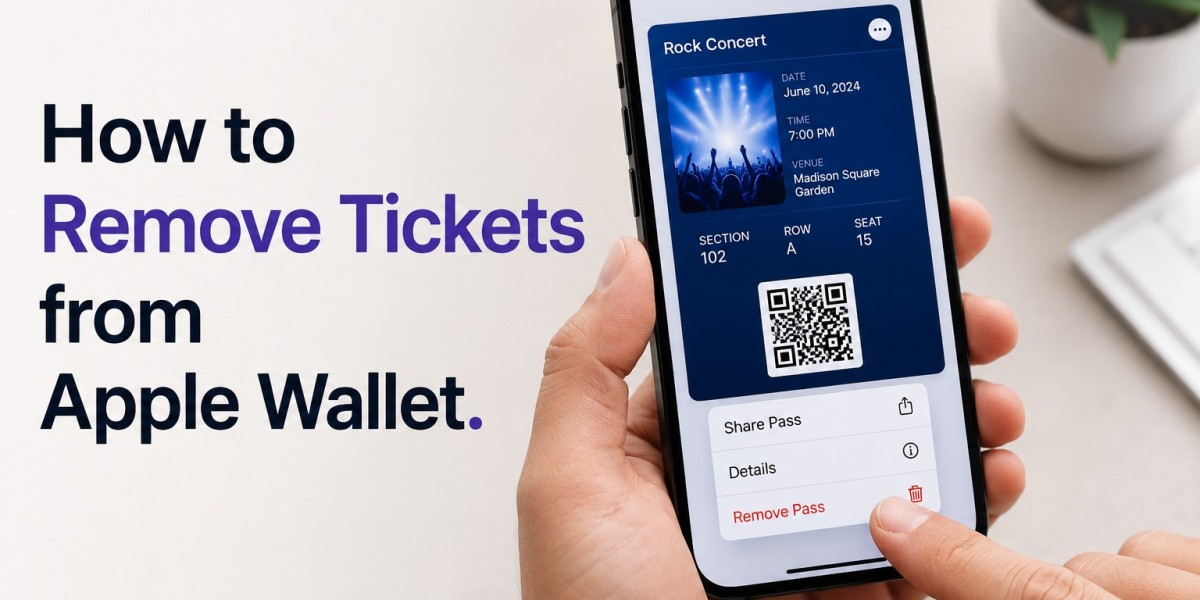

Apple Wallet is a convenient app that stores boarding passes, event tickets, movie passes, loyalty cards, and more in one secure place. While it helps keep everything organized, your Wallet can become cluttered over time with old or unused passes. Many users wonder how to remove tickets from Apple Wallet, especially after attending events or completing a trip.
In this guide, you'll learn how to remove tickets from Apple Wallet, how to delete multiple tickets, and the best way to handle removing expired tickets. Whether you're using an iPhone or Apple Watch, these simple methods will help you keep your Apple Wallet clean and organized.
Why Remove Tickets from Apple Wallet?
Apple Wallet is designed to keep your important digital passes readily available. However, holding onto outdated or unnecessary tickets can make it harder to find the passes you actually need.
Here are a few reasons why you should regularly remove tickets:
- Keep your Wallet organized.
- Reduce clutter from old event and travel passes.
- Make active tickets easier to access.
- Improve overall user experience.
Although expired passes don't consume significant storage, removing them keeps your digital wallet neat and efficient.
How to Remove Tickets from Apple Wallet
If you're wondering how to remove tickets from Apple Wallet, the process is straightforward. The exact steps may vary slightly depending on your iPhone's iOS version.
Step 1: Open Apple Wallet
Unlock your iPhone and open the Wallet app.
Step 2: Select the Ticket
Scroll through your available passes and tap the ticket you want to remove.
Step 3: Open More Options
Tap the More button (usually represented by three dots) located in the upper-right corner.
Step 4: Remove the Ticket
Scroll down and select Remove Pass.
Step 5: Confirm Removal
Tap Remove again when prompted.
The ticket will immediately disappear from your Apple Wallet.
How to Remove Tickets from Apple Wallet on Apple Watch
If the ticket is also stored on your Apple Watch, you can remove it directly from the watch.
Follow these steps:
- Open the Wallet app on your Apple Watch.
- Find the ticket you want to delete.
- Tap the pass.
- Scroll to the bottom.
- Select Remove.
- Confirm your choice.
The pass will no longer appear on your Apple Watch.
How to Delete Multiple Tickets from Apple Wallet
One common question users ask is how to delete multiple tickets at once.
Unfortunately, Apple Wallet currently does not offer a built-in feature that allows you to select and delete multiple tickets simultaneously. Instead, you'll need to remove each pass individually.
Steps for Deleting Multiple Tickets:
- Open Apple Wallet.
- Select the first ticket.
- Tap the three-dot menu.
- Choose Remove Pass.
- Confirm removal.
- Repeat the process for every unwanted ticket.
Although this takes a little time, it's currently the only official method provided by Apple.
Can You Bulk Delete Tickets?
At this time, there is no "Select All" or bulk-delete option inside Apple Wallet.
If you have dozens of old event tickets, airline boarding passes, or movie passes, you'll need to remove them one by one.
Many Apple users hope future iOS updates will include a bulk deletion feature, but as of now, manual removal is required.
Removing Expired Tickets from Apple Wallet
Another frequently asked question involves removing expired tickets.
Apple Wallet automatically marks many passes as expired after the event or travel date. However, expired tickets don't always disappear automatically.
Instead, they are often moved into an Expired Passes section.
How to Find Expired Tickets
To locate expired tickets:
- Open Apple Wallet.
- Scroll to the bottom of your passes.
- Tap View Expired Passes (if available).
Here you'll see old:
- Boarding passes
- Concert tickets
- Sports tickets
- Movie tickets
- Event passes
How to Remove Expired Tickets
Removing expired tickets is just as easy as removing active ones.
Follow these steps:
- Open the expired pass.
- Tap the three-dot menu.
- Select Remove Pass.
- Confirm deletion.
Repeat these steps until all expired tickets are removed.
Why Do Expired Tickets Stay in Apple Wallet?
Some users wonder why expired passes aren't deleted automatically.
Apple keeps expired passes for several reasons:
- They may contain useful event information.
- Some users keep tickets as digital souvenirs.
- Travel records may be useful later.
- Certain loyalty or event providers allow ticket reuse.
Because of this, Apple gives users full control over whether to keep or remove expired tickets.
Can Removed Tickets Be Recovered?
Once you remove a ticket from Apple Wallet, recovery depends on the ticket provider.
In many cases:
- You can re-download the ticket from the original email.
- Event apps often allow you to add the pass again.
- Airlines usually let you retrieve boarding passes before travel.
However, if the event has already passed and the provider no longer supports downloads, the ticket may not be recoverable.
What Happens After Removing a Ticket?
Removing a pass only deletes it from Apple Wallet.
It does not:
- Cancel your reservation
- Refund your purchase
- Delete your event account
- Affect your airline booking
- Remove the ticket from the provider's system
It simply removes the digital pass from your device.
Tips for Keeping Apple Wallet Organized
Managing your Wallet regularly helps you quickly find the passes you need.
Some helpful habits include:
- Remove tickets after attending events.
- Delete expired boarding passes after travel.
- Keep only active tickets.
- Review your Wallet every few weeks.
- Archive important travel confirmations elsewhere before deleting passes.
These simple practices make Apple Wallet much easier to navigate.
Common Issues When Removing Tickets
Sometimes users encounter problems while trying to remove tickets.
Here are a few common solutions:
Ticket Won't Delete
Restart your iPhone and try again.
Remove Option Missing
Some passes managed by third-party apps require removal from the original app instead of Apple Wallet.
Ticket Keeps Reappearing
The associated app may automatically sync the ticket back into Wallet. Check the app's settings and disable Wallet integration if necessary.
Apple Watch Still Shows the Ticket
Open the Wallet app on your Apple Watch and remove the pass separately if it doesn't sync automatically.
Frequently Asked Questions
Can I delete multiple tickets at once?
No. Apple Wallet currently requires users to remove each ticket individually.
Do expired tickets delete automatically?
Not always. Most expired passes remain available until you manually remove them.
Will removing a ticket cancel my reservation?
No. Removing a pass only deletes it from Apple Wallet.
Can I restore a removed ticket?
If the provider still offers access, you can usually download and add it to Apple Wallet again.
Does removing tickets free up storage?
Tickets occupy very little storage, so deleting them mainly helps keep your Wallet organized rather than significantly increasing available device space.
Final Thoughts
Knowing how to remove tickets from Apple Wallet is a simple but useful skill that helps keep your digital wallet organized. Whether you're cleaning up after a vacation, removing old concert passes, or simply organizing your iPhone, deleting unused tickets makes it easier to find the passes you need.
While Apple doesn't currently support how to delete multiple tickets in a single action, manually removing unwanted passes only takes a few moments. Likewise, removing expired tickets is a quick process that helps eliminate clutter without affecting your bookings or purchases.