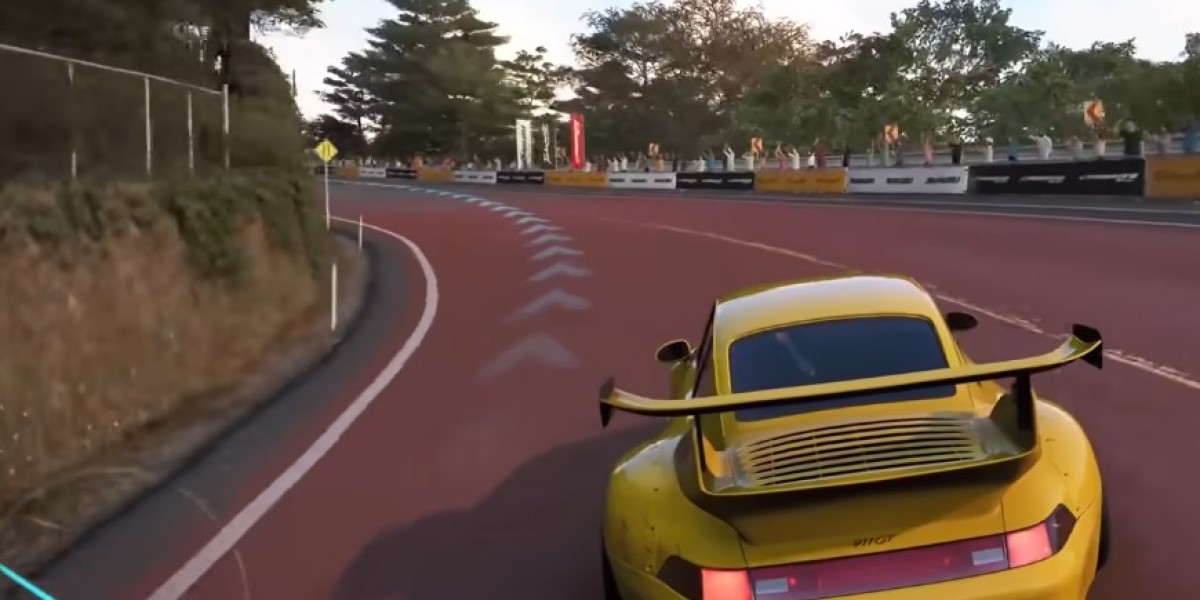

Getting smooth performance in Forza Horizon 6 on PC is less about brute-force hardware and more about smart settings. The game is generally well optimized, but its advanced lighting and ray tracing systems can heavily impact FPS, especially on mid-range GPUs. If you want stable frame pacing, low stutter, and consistent high FPS, a few key adjustments make a noticeable difference.
This guide focuses on practical in-game settings, system tweaks, and community-tested configurations to help you find the right balance between visuals and performance.
Critical Video Settings
Before touching graphics quality, you should first stabilize how the game handles frames and input. These baseline settings have the biggest impact on responsiveness.
Frame Rate: Unlocked
Let the game run without artificial caps so it can fully utilize your monitor refresh rate and GPU headroom.
Vertical Sync: Off
Disabling V-Sync reduces input lag and avoids unnecessary frame pacing issues. If you have screen tearing, use a frame limiter or VRR instead.
Display Mode: Fullscreen
Fullscreen mode provides the most stable performance and lowest latency compared to borderless windowed mode.
Motion Blur: Off or Low
Turning motion blur off improves clarity during high-speed races and helps you react faster in tight corners.
Highly Optimized Graphics Settings
The biggest performance gains come from selectively disabling heavy effects rather than lowering everything to low. Modern GPUs can handle high textures and geometry, but struggle with ray tracing and global illumination.
Here is a balanced optimization approach used by many players and performance testers:
Upscaling (DLSS / FSR / XeSS): Quality Mode
This is one of the most effective FPS boosters. Quality mode preserves sharpness while significantly improving performance and reducing aliasing.
Ray-Traced Global Illumination: Off (or Medium on high-end GPUs)
This is one of the most expensive settings in the game. Turning it off can free a large portion of GPU performance without heavily impacting moment-to-moment racing visuals.
Screen Space Global Illumination: High
This replaces most of the visual benefit of RTGI at a much lower cost.
Ray-Traced Reflections: Off
While visually impressive, RT reflections are extremely performance-heavy and often unnecessary during high-speed gameplay.
Screen Space Reflections: High or Extreme
Keeps car paint and wet roads looking realistic without the performance penalty of ray tracing.
Environment Textures: High (8GB VRAM) / Ultra (12GB+ VRAM)
Textures matter for clarity, especially in cockpit and close-up views. Ultra is optional if you have enough VRAM.
Environment Geometry: High or Ultra
Ultra provides slightly better detail, but High is often the best performance-to-quality balance.
Car Level of Detail (LOD): Ultra
This setting has minimal performance impact and helps keep cars detailed even at high speed.
Shadow Quality: High
High shadows provide stable performance and avoid frame drops during time-of-day transitions.
Particle Effects: Low or Medium
Reducing particles prevents sudden FPS drops during dust, smoke, or off-road racing sections.
Steam and Windows Optimization Tips
In-game settings are only part of the equation. Many stutters and frame drops actually come from system-level configuration issues.
Enable Hardware-Accelerated GPU Scheduling (HAGS)
Turn this on in Windows Graphics Settings. It can improve frame pacing and reduce latency in GPU-heavy scenes.
Let Shader Compilation Finish
The first time you launch Forza Horizon 6, the game compiles shaders. Do not interrupt this process. Skipping it often causes long-term stuttering issues during gameplay.
Disable Background Overlays
Turn off Steam Overlay, Windows Game Bar, and other performance monitoring tools. These overlays can interfere with frame timing and cause micro-stutter.
Set GPU Priority to High Performance
In Windows Graphics Settings, manually assign the game to your dedicated GPU and high-performance mode.
Community Performance Experience
Players generally agree that Forza Horizon 6 scales well across different hardware tiers. The biggest takeaway from community feedback is that ray tracing is the main performance bottleneck, not core rendering.
Many players report that a “High settings + upscaling enabled” configuration delivers a stable 60–90 FPS experience even at higher resolutions. On stronger systems, disabling ray tracing while keeping textures and geometry high can push performance well beyond that range without a major visual downgrade.
There is also a strong consensus that the game feels best when frame pacing is stable rather than chasing maximum FPS. Even mid-range GPUs can deliver a smooth experience if ray tracing is properly managed.
Forza Horizon 6 is designed to scale across a wide range of PC hardware, but it rewards players who understand which settings actually matter. The key is simple: prioritize upscaling, disable ray-traced effects, and keep core visual quality like textures and geometry at high levels.
Once properly tuned, the game delivers a smooth and visually impressive open-world racing experience without the stutter and inconsistency that often comes from default ultra settings.