
Outlook stores your mail in two main file types, OST and PST. They look similar in the file explorer, but they do very different jobs, and mixing them up is the reason many people lose access to their emails after a PC change or an account shutdown.
What is an OST file?
An OST (Offline Storage Table) file is a local copy of your mailbox. When Outlook connects to Exchange or Microsoft 365, it keeps a cached copy of your emails, contacts, calendar and folders on your computer so you can keep working without an internet connection. Once you're back online, Outlook syncs your changes with the server.
The important point is that an OST file depends on the account and profile that created it. It isn't meant to be moved around or opened on its own.
What is a PST file?
A PST (Personal Storage Table) file is a self-contained data file. It doesn't need a server connection or a specific profile. People use PST files to back up mail, archive old messages, and move data between computers or Outlook installations.
The main differences
- Dependence on the server: an OST file is tied to its Exchange or Microsoft 365 account, while a PST file works on its own.
- Portability: a PST file can be copied and opened on another machine, while an OST file usually can't.
- Purpose: OST is for offline access and syncing, while PST is for backup, archiving and transfer.
- Recovery: if the server account is gone, a PST file is still readable, while an orphaned OST file isn't.
When do you need to convert OST to PST?
Most people only think about this after something goes wrong. Common triggers include:
- A former employee's Exchange account has been deleted, but their OST file is still on the old laptop.
- A computer was replaced and the old OST file is the only copy of recent mail.
- A migration to a new server or tenant left the local OST disconnected.
- The OST file is corrupted and Outlook can't open it.
- You need to hand over a mailbox as a portable file for compliance or legal review.
Why Outlook's built-in export isn't always enough
Outlook's File > Open & Export option works only when the OST is still connected to a working profile. If the account is deleted, the profile is gone, or the file is damaged, that route is closed, and you need a tool that reads the OST file directly.
What to look for in a converter
- It should scan the OST file without needing the original Exchange server or Outlook profile
- A preview of folders, emails and attachments before you convert
- Selective export, so you can recover only the folders you need
- The option to split large PST output into smaller files
- Other formats such as EML, HTML or MHT, or direct migration to Microsoft 365 or Exchange Server
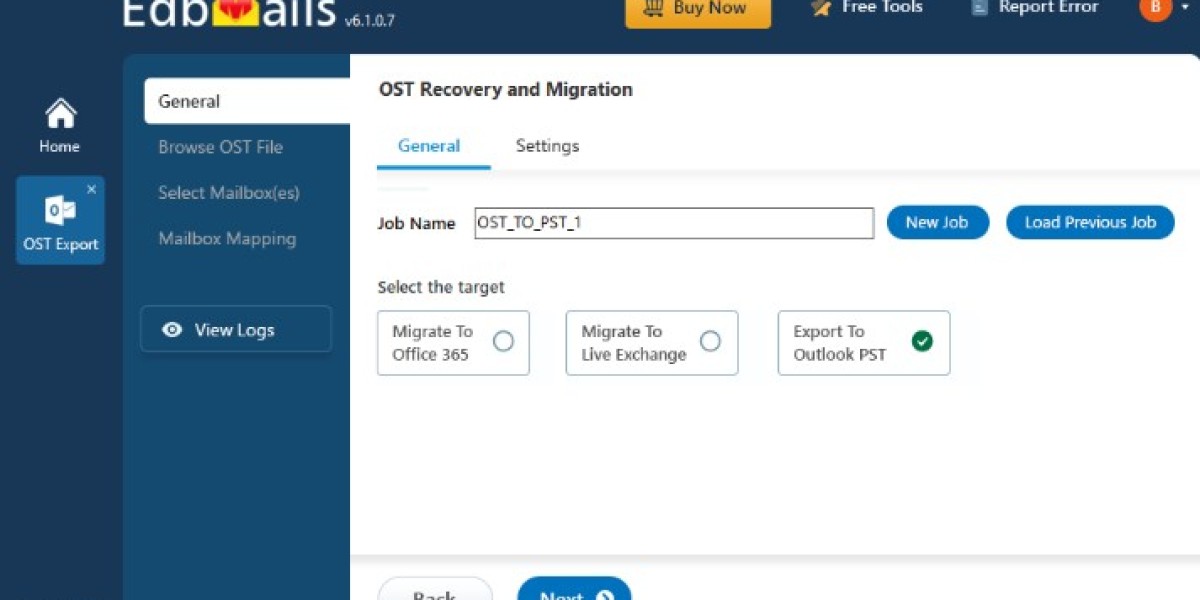
One example is the OST to PST converter from EdbMails, which offers these options. Whichever tool you use, keep a copy of the original OST file before you start, and check the recovery results in the preview before you export.
Final thoughts
Understanding the difference between OST and PST helps you protect your data before a problem happens. Keep regular PST backups of important mailboxes, and if you do end up with an orphaned or damaged OST file, remember that the data is usually still inside it and can be recovered.