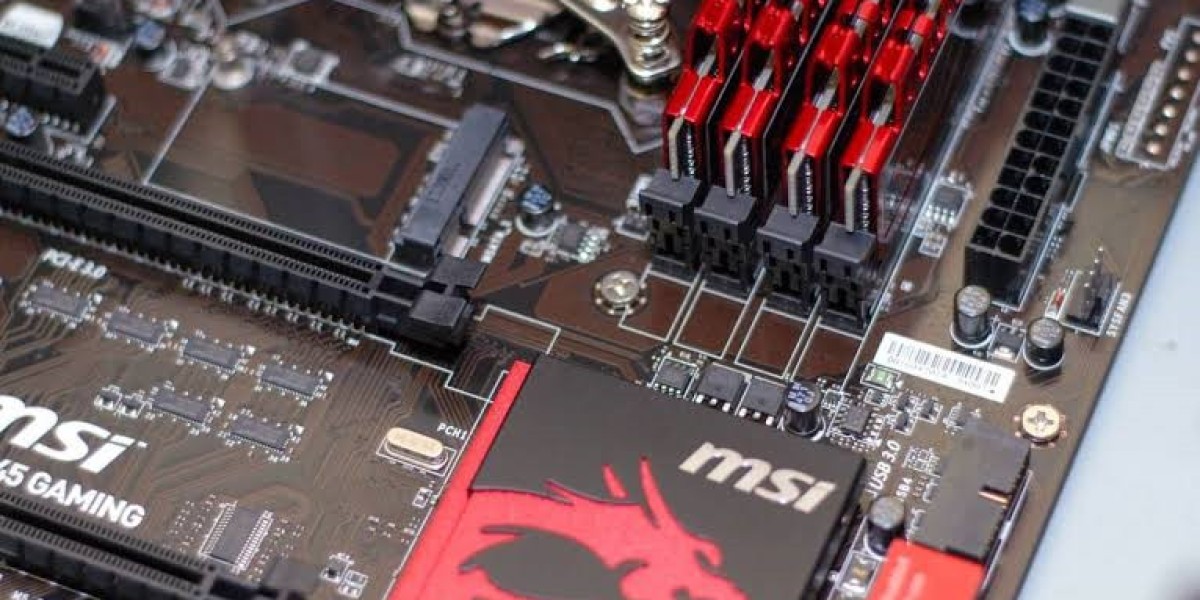

When a computer starts experiencing hardware problems, one of the first things you may need to know is the exact motherboard installed inside the system. The motherboard connects many of the computer's major components, including the processor, memory, storage devices, graphics hardware, and expansion cards. Having accurate motherboard information can make troubleshooting much easier.
If you are dealing with startup errors, hardware compatibility problems, driver issues, or BIOS-related problems, learning how to identify your motherboard can help you find the right solution.
Fortunately, you do not always need to open your computer case. Windows provides several built-in ways to find motherboard information. You can also check BIOS settings, inspect the physical board, or use reliable hardware identification software.
What Is a Motherboard?
The motherboard is the primary circuit board inside a computer. It provides connections that allow different hardware components to communicate.
A typical desktop motherboard may contain slots and connectors for:
Processor
RAM
Graphics card
SSDs
Hard drives
USB devices
Network hardware
Sound hardware
Cooling systems
The motherboard also contains important firmware and chipset components that help the computer communicate with its hardware.
Because motherboards have different designs and specifications, identifying the exact model can be important when repairing or upgrading a computer.
Why Motherboard Identification Helps With Troubleshooting
Suppose your computer suddenly stops recognizing a storage drive. You may need to check whether the motherboard supports that particular storage interface.
Similarly, if the computer is having memory problems, the motherboard specifications can tell you what type of RAM is supported.
Knowing the motherboard model can help you find:
Correct device drivers
BIOS updates
User manuals
Hardware compatibility lists
Technical specifications
Troubleshooting guides
Replacement components
Instead of guessing, you can search for solutions based on the exact hardware installed in your computer.
How to Identify Your Motherboard With System Information
Windows System Information is one of the simplest tools for identifying a motherboard.
Press Windows + R to open the Run window. Enter:
msinfo32Press Enter.
The System Information window will open. Look for the following entries:
BaseBoard Manufacturer: Identifies the motherboard manufacturer.
BaseBoard Product: Shows the motherboard model or product number.
BaseBoard Version: May show the board revision or version.
You can write these details down and use them when searching for drivers or technical documentation.
This method is especially useful when your computer is still able to start Windows normally.
Identify the Motherboard Using Command Prompt
Command Prompt offers another quick way to retrieve motherboard information.
Open Command Prompt and enter:
wmic baseboard get manufacturer,product,version,serialnumberDepending on your Windows version, this command may display the manufacturer, model, version, and serial number.
If WMIC is unavailable, use PowerShell instead.
Open PowerShell and enter:
Get-CimInstance Win32_BaseBoard | Format-List Manufacturer,Product,Version,SerialNumberThe result should provide useful motherboard details.
This method can be helpful for technicians who need to identify hardware without physically opening a computer.
Check BIOS or UEFI When Windows Has Problems
What if your computer cannot boot into Windows?
You can often identify the motherboard through BIOS or UEFI.
Restart the computer and press the appropriate key during startup. Depending on the manufacturer, this may be F2, Delete, F10, F12, or Esc.
Once inside BIOS or UEFI, look for a system information section. The screen may display:
Motherboard model
Manufacturer
BIOS version
Processor
Installed memory
System information
This method can be particularly useful when troubleshooting startup problems because BIOS or UEFI operates before Windows loads.
Do not change BIOS settings unless you understand what they control. If you only need the motherboard model, simply record the information and exit without making changes.
Inspect the Physical Motherboard
If software tools cannot identify the board, physical inspection may be necessary.
This method is mainly appropriate for desktop computers.
Turn off the computer completely and disconnect the power cable before opening the case. Remove the side panel carefully.
Look for printed information directly on the motherboard. The model number may be printed near the RAM slots, PCIe slots, processor socket, chipset, or bottom edge.
You may see a manufacturer name followed by a series of letters and numbers.
Make sure you record the complete model number. Some motherboard models have similar names, and a small difference in the model can mean significant differences in specifications.
How to Identify a Motherboard in a Laptop
Laptop motherboards are usually more difficult to inspect because they are inside compact cases.
Instead of opening the laptop, check its system information.
Press Windows + R, type msinfo32, and press Enter.
Look at:
System Manufacturer
System Model
BaseBoard Manufacturer
BaseBoard Product
BaseBoard Version
For many laptops, the system model is more useful than the motherboard product name.
Laptop manufacturers often use custom motherboard designs, so replacement parts may need to be matched to the exact laptop model.
If the laptop requires professional repair, providing the technician with the computer's manufacturer and model can help them identify the correct hardware.
Use Hardware Information Applications
Sometimes Windows reports limited motherboard information. In that case, a reputable hardware information application can provide additional details.
Depending on the application, you may be able to see:
Motherboard model
Manufacturer
Chipset
BIOS version
CPU socket
RAM configuration
Memory slots
PCIe information
Storage interfaces
Third-party tools can be useful for advanced troubleshooting, but choose software from a trustworthy source.
Avoid downloading unknown utilities simply because they promise to reveal hardware information. Some programs may include unwanted software.
What Motherboard Information Should You Record?
When troubleshooting, recording the motherboard model alone may not always be enough.
If possible, save the following information:
Manufacturer: The company that produced the board.
Model: The exact motherboard product name.
Revision: The board revision, if available.
BIOS/UEFI version: Useful when investigating firmware compatibility.
Chipset: Helps with hardware compatibility research.
CPU socket: Important when investigating processor support.
These details can help you find accurate technical documentation.
Identifying Your Motherboard for Driver Problems
Drivers allow Windows and hardware components to communicate correctly.
If you reinstall Windows or encounter hardware errors, you may need motherboard-related drivers.
The exact driver package depends on the motherboard model and operating system.
After identifying your motherboard, visit the manufacturer's official support page and search for the exact model.
You may find drivers for:
Chipset
Network adapter
Audio
Storage controllers
USB components
Other motherboard hardware
Avoid downloading drivers from random websites when the manufacturer's support page is available.
Identifying Your Motherboard for BIOS Updates
BIOS updates can improve compatibility, fix bugs, and sometimes add support for newer processors or memory.
However, BIOS updates must be handled carefully.
Before downloading an update, verify:
Motherboard manufacturer
Exact motherboard model
Board revision
Current BIOS version
Correct BIOS file
Installing firmware designed for another motherboard can cause serious problems.
For this reason, correctly identifying your motherboard is essential before attempting a BIOS update.
Identify the Motherboard Before Replacing Hardware
Hardware replacement is another situation where motherboard identification matters.
If you want to replace the processor, check the supported CPU list.
If you want to upgrade memory, check the supported RAM type and maximum capacity.
If you want to install an SSD, check available SATA or M.2 connections.
If you want to install a graphics card, check the available expansion slots and physical space inside the computer case.
The motherboard model gives you a starting point for researching all of these requirements.
What If Windows Shows Generic Information?
Sometimes Windows may display incomplete or generic motherboard information.
For example, you might see a generic product name instead of the exact model.
This can happen because the system firmware does not contain complete board information.
If this occurs, try another method. Check BIOS or UEFI, inspect the physical motherboard, review the computer's original documentation, or use reputable hardware information software.
For branded computers, search using the computer's exact model number on the manufacturer's support website.
Keep Your Hardware Information for Future Repairs
Once you identify your motherboard, save the information somewhere safe.
You can create a simple hardware record containing:
Computer model
Motherboard model
Processor
RAM
Storage
Graphics card
BIOS version
This information can save time during future repairs.
If your computer develops another hardware problem months later, you will not need to repeat the identification process.
Final Thoughts
Learning how to identify your motherboard is a useful computer maintenance skill. Whether you are troubleshooting a hardware problem, searching for drivers, checking BIOS compatibility, or planning an upgrade, knowing the exact motherboard model gives you a reliable starting point.
Windows System Information is usually the easiest method. Command Prompt and PowerShell provide additional options, while BIOS or UEFI can help when Windows will not start. Desktop users can also inspect the physical motherboard when necessary.
Once you have identified the board, always verify its specifications through reliable manufacturer documentation. Accurate information can help you choose compatible hardware, install the correct software, and troubleshoot computer problems more efficiently.